How to delete multiple ChatGPT chats without deleting all
By The TidyChats founder · · 7 min read
As of October 2026, ChatGPT gives you two ways to delete chats: one at a time from the ••• menu next to a chat, or all at once with Settings → Data controls → Delete all chats. There's no built-in way to tick ten specific chats and delete just those. If you want to clear out a batch and keep the rest, you can delete them one by one, archive them instead, or use a browser extension that adds multi-select.
I build TidyChats, which is one of those extensions, so I'll get to it at the end. First the native route, and the things I'd check before deleting anything, because a couple of ChatGPT's deletion rules trip people up.
What ChatGPT lets you do natively
OpenAI's help article on deleting and archiving chats describes two levels: a single chat, or everything.
Delete one chat
- Hover the chat in the sidebar and click •••.
- Choose Delete.
- Confirm.
That's fine for three chats. For forty, it's a lot of hovering and clicking, and people have noticed. A feature request on the OpenAI community forum from September 2026 puts it plainly: "users must delete every chat individually, which takes a lot of time when cleaning a large chat history".
Delete or archive everything
Under Settings → Data controls you'll find Archive all chats and Delete all chats. Both are all-or-nothing. You can't limit them to chats older than a certain date, to one topic, or to chats outside your Projects.
If you really want a clean slate, Delete all is the quickest way to get one. Just go through the checklist below first, especially the point about Projects.
A safe-delete checklist
Deleted ChatGPT chats don't come back. OpenAI's help center says deleted chats disappear from view immediately, can't be restored even by Support, and are deleted from OpenAI's systems within 30 days, unless they've been de-identified or have to be kept for security or legal reasons. So it's worth ten minutes of prep.
- Export your data first. Go to Settings → Data controls → Export. According to OpenAI's guide to exporting your ChatGPT history, the export can take up to 7 days to arrive, the download link expires after 24 hours, and you get a ZIP file that includes conversations.json. Request it, wait for the email, download it right away, and only then start deleting.
- Check your Projects. Delete all chats also deletes the chats inside your Projects. OpenAI's help article on Projects covers this, and there's a forum thread asking for a way to exclude Project chats because, in one user's words, "selecting this option removes all chats, including those that have been moved to Projects". If you moved important chats into a Project thinking that kept them safe, it doesn't protect them from Delete all. Separately, deleting a Project removes its chats, instructions and project files (files in your Library are kept).
- Remember that memory is separate. Per OpenAI's Memory FAQ, deleting chats doesn't clear saved memories. If your reason for deleting is "I don't want ChatGPT to know this anymore", check your saved memories too. Turning off Reference chat history deletes the remembered information within 30 days, and your chats stay where they are.
- Ask whether you need to delete at all. If the real goal is a sidebar you can read again, archiving gets you most of the way and you can undo it. More on that below.
- Use temporary chats from now on. Temporary chats don't show up in your history and aren't used for training, though OpenAI may keep them for up to 30 days for safety. They're a good fit for quick one-off questions you'd end up deleting anyway.
Archive is the softer option
Archiving takes a chat out of your sidebar without deleting it. OpenAI's help center says archiving doesn't ask for confirmation and archived chats stay searchable, so you can still get back to them later.
My take: if you're cleaning up because the sidebar has become unreadable, archive. Save delete for chats you actually want gone, like ones with personal details, something you pasted by mistake, or client material you've agreed to remove.
The catch is the same as with deleting. You can archive individual chats, or use Archive all chats, but there's nothing in between. Archive all loses nothing, though it does leave you with an empty sidebar and makes you rely on search to find older work. If you're not sure search will find what you need, my post on how to search your ChatGPT history covers what it catches and where it falls short.
Decide what to delete before you start
A cleanup usually targets a category of chats rather than a random handful: everything older than a year, the pile of "test" chats from when you were trying out a new model, or every chat about a project that's finished.
Doing that by hand works if you approach it in passes. Search for a keyword the unwanted chats share, open each result, and delete it from the ••• menu. Then scroll to the bottom of your history for the oldest chats and work upward. It's slow, but it's free and you see every chat before it goes.
If the category is large, that's where a multi-select tool saves real time.
Bulk delete and archive with TidyChats
TidyChats adds a "Manage chats" view to ChatGPT where you can select several chats and delete or archive them in one action. Here's the flow:
- Open Manage chats from the TidyChats block in the ChatGPT sidebar. It's also one of the default shortcuts on the launcher button and in the command palette.
- Narrow the list. Type in Filter by title, or use the age chips > 30 days, > 90 days or > 1 year. Age is based on when a chat was last updated, so an old chat you added a message to yesterday counts as recent.
- Tick the checkboxes next to the chats you want, or use Select all to take everything the filter shows.
- Click Archive or Delete.
- Confirm. The dialog says "This removes them from your ChatGPT account and cannot be undone from TidyChats." A progress box with a Cancel button shows while it works, and rate limits are retried automatically.
- Refresh the page so ChatGPT's sidebar catches up.
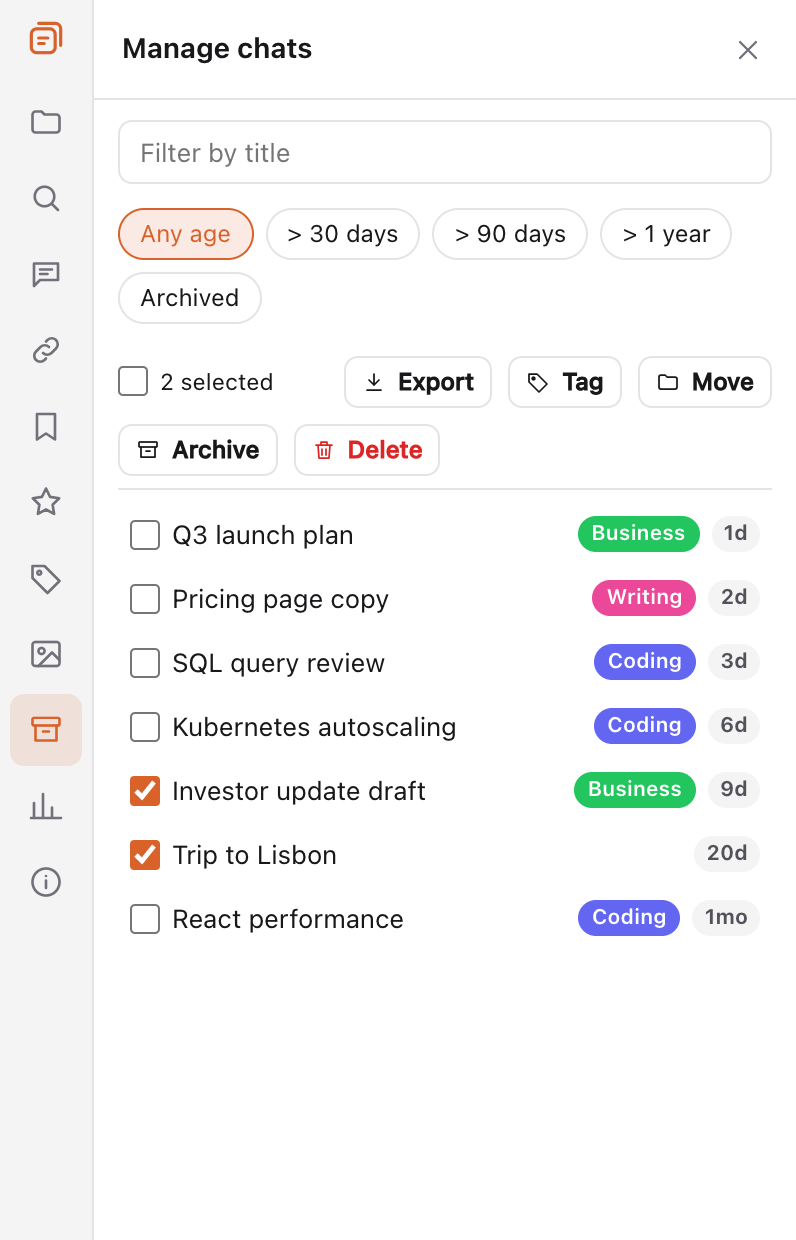
A few details worth knowing before you rely on it:
- The Archived chip shows your archived ChatGPT chats, and you can Unarchive them from there.
- The same toolbar has Export, Tag and Move. On the free plan, export is TXT and one chat at a time. Exporting a selection as a ZIP is a Premium feature. My tutorial on exporting conversations to PDF and Markdown walks through it. Either way, I'd still request ChatGPT's own data export before a big cleanup.
- Only chats that TidyChats has synced show up in the list. If it's empty, run Index all or Import all chats first. ChatGPT limits how fast chats can be read, so syncing a large history takes a while.
- The free plan acts on 5 chats at a time ("Free plan can delete up to 5 chats per action."). Premium removes that cap. ChatGPT Premium is $9.99 a month, $59 a year or $99 lifetime, with a 14-day money-back guarantee, and the details are on the pricing page.
On other assistants it varies. On Claude, TidyChats offers bulk delete but not archive. On Gemini and Grok, bulk delete isn't offered at all. The view says "
If you're weighing several extensions for this, I wrote a comparison of ChatGPT organizer extensions that includes the ones I'd recommend over mine for certain setups.
Questions people ask
Can you select multiple chats to delete in ChatGPT?
Not natively, as of October 2026. ChatGPT lets you delete one chat at a time from the ••• menu, or every chat with Delete all chats under Settings → Data controls. Picking several specific chats needs a browser extension.
Does "Delete all chats" also delete chats in Projects?
Yes. Delete all chats removes chats inside Projects too. If you want to keep some of them, export your data first or delete the others individually.
Can I recover a deleted ChatGPT chat?
No. OpenAI's help center says deleted chats can't be restored, even by Support. The only way back is a data export you downloaded before deleting.
Does deleting a chat remove it from ChatGPT's memory?
No. Saved memories are separate from chats, so you need to review or delete those on their own. Turning off Reference chat history deletes remembered information within 30 days.
Is archiving the same as deleting?
No. Archived chats leave your sidebar but stay in your account and remain searchable, so you can bring them back. Deleting is permanent.
Try TidyChats free
Folders, search and prompts for ChatGPT, Claude, Gemini and Grok.