How to search your ChatGPT history, and why it misses chats
By The TidyChats founder · · 7 min read
To search your ChatGPT history on the web, click the magnifying glass in the sidebar or press Ctrl+K (Cmd+K on a Mac) and start typing. In the iOS and Android apps, use the search bar in the sidebar. If the chat you want doesn't show up, OpenAI's help article on searching chat history suggests trying different words, setting the filter to "All", and checking your archived chats.
When that still doesn't find it, there are two more native routes: ask ChatGPT itself, which can pull details from past chats when Reference chat history is on, or download your data export and search the file. Each one misses things for its own reasons. Below I go through all three, then a simple test you can run on your own history to see which works for you.
ChatGPT's built-in search
This is where to start, and for a lot of people it's enough. As of October 2026:
- On the web, click the magnifying glass in the sidebar or press Ctrl+K / Cmd+K. On mobile, tap the search bar in the sidebar.
- Type a word or phrase you remember from the chat.
- If the results look off, set the filter to All and search again.
- Try a different word for the same idea. You might remember "invoice" while the chat itself only ever said "billing".
- If you archive chats, check your archived chats too. OpenAI's help article on deleting and archiving chats says archived chats stay searchable.
What changed in summer 2026
ChatGPT's search got two updates this year, according to the ChatGPT release notes. The July 14, 2026 entry describes a unified search across chats, projects, images and documents, with content filters, on web, iOS and Android. The August 7, 2026 entry says search is "now including folders and matching conversation titles".
I'm passing that on as the release notes describe it. They're short and don't explain how results are matched or ranked, so treat them as a description of what's meant to be there rather than a spec.
Where it falls short
Search works best when you remember a distinctive word. It's weaker when your memory of the chat is vague, or when lots of chats share the same words. Some users report odder problems. A June 2026 thread on the OpenAI community forum says: "Searching different exact terms returns the same unrelated conversations, and the returned conversations do not contain the searched terms". That's one person's report, not a measurement, but if it matches what you're seeing, you're not imagining it.
Asking ChatGPT to find it for you
The second route is to just ask. With Reference chat history turned on, ChatGPT can recall details from your past chats and show you the sources it used. Something like "Find the chat where we planned the Lisbon trip budget" can work when you remember the topic but not a single exact word.
The limitation is that you don't control what it recalls. OpenAI's Memory FAQ says memory doesn't keep everything, and ChatGPT decides what's relevant to your question. If it doesn't bring up the chat you're thinking of, that tells you little about whether the chat still exists. (Turning off Reference chat history deletes the remembered information within 30 days, but your chats stay.)
Searching your data export offline
The third route is the most complete, and also the slowest. You download everything and search it on your own computer.
- Go to Settings → Data controls → Export.
- Wait for the email. According to OpenAI's export guide, it can take up to 7 days.
- Download it within 24 hours, because the link expires after that.
- Unzip the file and open conversations.json in a code editor or any text editor that handles large files.
- Use the editor's find feature to search for your word or phrase.
It's raw JSON, so it isn't pretty, but your conversations as of the day you requested it are in there. I'd keep one export around as an offline backup anyway, especially before a cleanup. If you're planning one, my post on deleting multiple ChatGPT chats without deleting all has a checklist for that.
Why each method misses chats
None of them catches everything, and they miss different things.
| Method | Good at | Where it misses |
|---|---|---|
| Built-in search | Fast lookups when you remember a distinctive word | Ranking you can't see; results can be noisy when many chats share words |
| Asking ChatGPT (Reference chat history) | Fuzzy, topic-level recall in plain language | ChatGPT decides what's relevant, and memory doesn't keep everything |
| Data export | Complete snapshot you can search offline | Up to 7 days to arrive, link expires in 24 hours, raw JSON, already out of date the day after |
Chat titles add to the problem. ChatGPT names chats automatically, and the title usually reflects how the conversation started, not where it ended up. A chat titled after a quick Python question might hold the database schema you spent an hour on. If you scan titles in the sidebar or rely on title matches, those chats are easy to miss.
A simple test you can run yourself
Rather than trust anyone's opinion on which method works (mine included), check it against your own history.
- Pick 10 chats you remember well. Mix them up: a couple of recent ones, a few from months ago, one inside a Project, one you archived, one with code in it.
- For each chat, write down a phrase that appears in the message text but not in the title. Note the title next to it.
- Search each phrase in ChatGPT's built-in search. Mark it as a hit if the right chat appears in the first few results.
- Ask ChatGPT for the same 10 chats with Reference chat history on, and mark those hits too.
- Compare the two columns.
If built-in search gets nearly all of them, you probably don't need anything else, and I'd say so. If it misses old chats, archived ones, or phrases buried deep in long replies, you know exactly where your gap is, and you can run the same 10 phrases against any other tool you try.
Full-text search with TidyChats
I build TidyChats, and full-text search is one of the main reasons it exists. It's one option if your test shows gaps.
TidyChats indexes the full text of every message in each synced chat, both yours and the AI's, plus titles. The index lives locally in your browser's IndexedDB. Matching is case-insensitive word and substring matching, not semantic search, so it finds the words that were actually used. If you search "money" and the chat only said "budget", it won't connect the two.
How ChatGPT gets indexed matters, so here are the details:
- TidyChats reads your history through ChatGPT's web API using your existing session: the main list, starred, archived and Projects.
- It downloads full chats one at a time on purpose, about 3 seconds apart, and backs off when ChatGPT rate-limits it. On a large history that can take hours. The UI shows an estimate ("ChatGPT limits how fast chats can be read · about N min left. Search works meanwhile.").
- While full text is still downloading, searches also go to ChatGPT's own server search to fill the gaps. That means your search terms are sent to ChatGPT during that time.
- The faster path is Email me my ChatGPT export on the dashboard Overview. When you click the download link in OpenAI's email, TidyChats imports the ZIP automatically, or you can use Choose export file.
The search view supports operators like "exact phrase", -word to exclude, role:user and after:2025-01-01, plus chips for Exact and Titles only. Clicking a result jumps to that message in the chat.
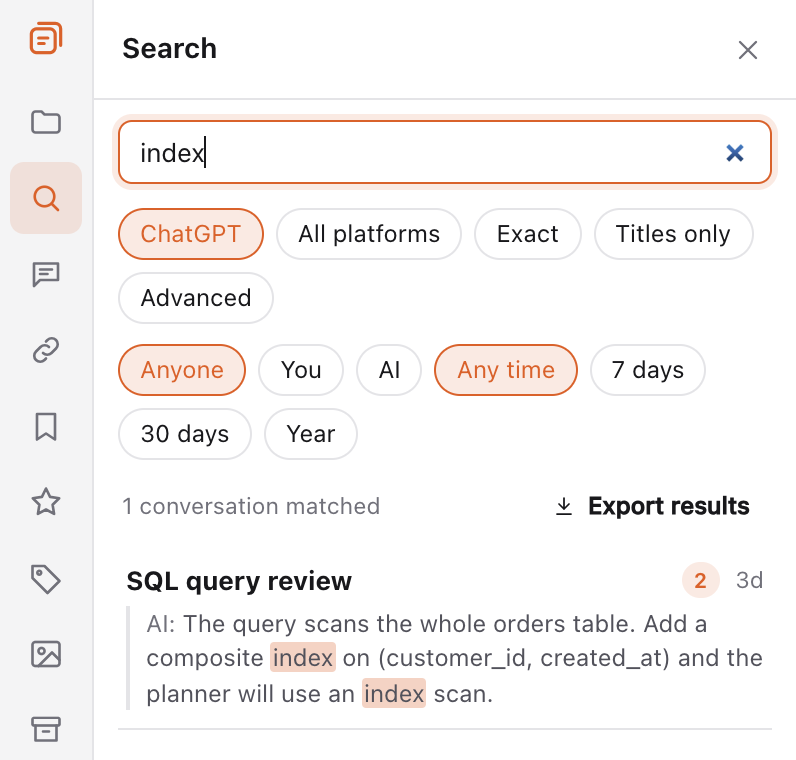
It also searches across assistants. Use the All platforms chip or press Cmd/Ctrl+Shift+. to search ChatGPT, Claude, Gemini and Grok in one go, with a platform badge on each result. The tutorial on searching across all your AI chats shows the setup step by step.
Two caveats. The free plan shows 5 results per search ("Free plan shows 5 results per search. N more matched."), though all the matching still runs. Premium removes the cap and is sold per platform, as listed on the pricing page. Also, TidyChats uses Cmd/Ctrl+K for its own command palette, the same shortcut as ChatGPT's search. If you'd rather keep ChatGPT's, turn off "Use ⌘+K for the command palette" in TidyChats settings. More about the ChatGPT side is on the TidyChats for ChatGPT page.
Questions people ask
Does ChatGPT search look inside chats, or only at titles?
OpenAI's help article doesn't spell out exactly what's matched, and the August 2026 release notes mention matching conversation titles. The most reliable way to find out for your account is the 10-phrase test above, using phrases that aren't in any title.
Does ChatGPT search include archived chats?
OpenAI says archived chats stay searchable, and its search tips suggest checking your archived chats if something is missing.
How do I search my ChatGPT history on my phone?
In the iOS and Android apps, open the sidebar and use the search bar.
Why can't I find an old ChatGPT chat?
Common reasons: the automatic title doesn't contain the words you remember, the chat is archived, the filter isn't set to "All", or the chat was deleted. Deleted chats can't be restored, so if it's not in a data export either, it's gone.
Try TidyChats free
Folders, search and prompts for ChatGPT, Claude, Gemini and Grok.