Import ChatGPT Memory into Claude, Not Raw Transcripts
By Shaig Khaligli · · 15 min read

Yes, use Claude's import flow: copy Claude's prompt into ChatGPT, run it, then paste the output into Claude's memory import. Import a curated summary of your preferences, recurring instructions, and projects, not raw transcripts. Expect the imported memory to take up to 24 hours to show up, and review it once it does.
TL;DR:
- Claude does not recreate live threads, custom GPTs, uploaded files, or connected apps, so export an archive separately when you need those records.
- Enable ChatGPT memory and use a fresh chat in the correct account or workspace; redact secrets, API keys, client names, and personal identifiers before pasting.
- Full account exports can take up to 7 days, and download links expire after 24 hours; Team and Enterprise accounts may require administrator approval.
- Keep workstream details in Claude projects, then verify imported preferences in a new conversation and correct inaccurate entries through Manage edits.
Table of Contents
- What does Claude's import do with your ChatGPT history?
- How do you prepare the input from ChatGPT?
- How do you run Claude's import flow?
- How do you review and tidy the imported memories?
- How do you verify the import and fix gaps?
- What should you check on privacy and accounts before migrating?
- What does the migration checklist look like?
- How do we help you prepare and organize chats for the import?
- How should you organize imported conversations in TidyChats afterward?
- How do folders, search, and the prompt library optimize your ChatGPT data?
- Can you automate or bulk import ChatGPT chats into Claude?
- What do you do when the import doesn't look right?
- Is locally stored chat data in TidyChats secure and private?
- Why does selective portability produce better memories?
- How can a conversation manager speed up your migration?
- FAQ
- Sources
What does Claude's import do with your ChatGPT history?
Claude's import is a memory import, not a thread migration. Anthropic describes it as one copy-paste step that carries over useful context such as preferences, working style, projects, and recurring instructions.
Memory is a compressed profile. A raw transcript is the full record of every message. Claude ingests the first, not the second.
Here is what that means in practice:
- Preferences and working style transfer as discrete memory entries.
- Live ChatGPT threads are not recreated inside Claude.
- Custom GPTs, uploaded files, and connected apps do not come along, per Claude's Help Center.
- Full conversations stay in ChatGPT unless you export them yourself as an archive.
If a body of knowledge belongs to one workstream, such as a client engagement or a thesis, put it in a Claude project instead of account memory. Projects keep their context separate, so one workstream's details do not bleed into another. Our guide to organizing Claude chats explains why projects are not the same thing as folders.
How do you prepare the input from ChatGPT?
You have two routes. The official export gives you an archive of everything. The summary route gives you the clean, compact text Claude's import wants.
Use the full export when you need a backup. OpenAI's export can take up to 7 days to arrive, and the download link expires after 24 hours, so download it promptly. For memory import, a one-chat summary is usually faster and cleaner, because you ask ChatGPT to distill what it knows using Claude's own prompt.
Prepare the content like this:
- Check that ChatGPT memory is enabled on the account you are exporting from, so it has context to summarize.
- Confirm you are in the right account or workspace, personal or work.
- Run Claude's import prompt in a new ChatGPT chat (Step 2 covers where to find it).
- Read the output and delete secrets, API keys, client names, and personal identifiers.
- Copy the full cleaned text, not a fragment of it.
Pro Tip: Keep a separate file with the redacted original. If Claude's memory later looks thin, you can re-run a focused summary from it instead of starting over.
If you cannot find the threads you want to summarize, our walkthrough on searching your ChatGPT history covers why some chats go missing.
How do you run Claude's import flow?
The whole sequence involves a few clicks. Most of the waiting happens afterward.
- In Claude, open Settings, then Memory. You can also reach it through Settings, then Capabilities, then Memory, then Start import.
- Copy the prompt Claude provides.
- Open a new ChatGPT chat, paste that prompt, and run it.
- Copy ChatGPT's complete output.
- Return to Claude, paste the output into the import box, and select Add to memory.
- Wait. Processing can take up to 24 hours before the imported context fully shapes responses.
Use a fresh ChatGPT chat for the prompt. An old thread carries its own context and can skew the summary toward whatever that thread was about.
If you want to tidy the output before pasting, our prompt formatter helps clean up text. And if you want a backup of your Claude side as well, see how to export a Claude chat to PDF, Markdown or JSON.
Do not paste the output in twice to "make sure it took." The import is queued, and duplicates only create redundant memory entries you will have to delete later.
How do you review and tidy the imported memories?
Imported text does not sit in Claude as one blob. Claude extracts it into individual memory edits that you can review in the memory panel, and project memory stays separate from account memory.
Work through it in this order:
- Open the Memory panel and use Manage edits to see each entry as Claude stored it.
- Ask Claude directly: "List everything you remember about me, verbatim." Compare the answer with what you intended to import.
- Delete or correct entries that are wrong, outdated, or too vague to help.
- Move workstream-specific knowledge out of account memory. Create a project and upload the relevant documents there.
Compression is where errors creep in. A summary can flatten "I prefer short answers for emails, long ones for research" into "prefers short answers." Catching that now can help prevent subtly off responses.
Pro Tip: Fix entries by editing them in Manage edits rather than arguing with Claude in chat. A corrected memory entry persists; a chat correction may not.
How do you verify the import and fix gaps?
Give the import time first. Processing can take up to 24 hours, so a fresh chat soon afterward may not reflect anything yet.
Then test it:
- Start a brand-new conversation, not a continuation of an old one.
- Ask Claude to apply a preference you imported, such as your preferred tone or output format, and check whether it does.
- Run a scenario that depends on imported context, like a task tied to a recurring project, and see whether Claude already knows the background.
- If something is missing, generate a focused summary in ChatGPT for just that topic or project, then paste it through the import flow again.
Remember that conversations created while memory is paused are not added to memory, so confirm memory is switched on before you test. If entries are present but ignored, check whether they were saved to a project rather than your account memory.
What should you check on privacy and accounts before migrating?
Treat the summary like any document you would share outside your organization. A few checks keep you out of trouble:
- OpenAI exports can arrive late and their links expire, so do not make your migration plan depend on a same-day delivery.
- Team and Enterprise ChatGPT accounts may restrict exports or require an administrator to approve them.
- Anthropic's privacy documentation distinguishes consumer protections from business governance. Do not paste confidential, regulated, or proprietary client data into a personal account. Use an organization workspace when governance matters.
- Redact API keys, passwords, and personal identifiers before importing, and keep a local backup of any full export for archival needs.
What does the migration checklist look like?
Official documentation from Claude and OpenAI points to the same habits. Keep this list next to you while you work:
- Export an archive of ChatGPT for backup, but import only a curated summary into Claude memory.
- Redact or skip confidential and regulated content when you use a personal account; use an organization workspace for business data.
- After importing, ask Claude to list what it remembers, then correct entries in Manage edits.
- Scope project knowledge to projects, not account memory.
How do we help you prepare and organize chats for the import?
We built TidyChats as a Chrome extension that works across ChatGPT, Claude, Gemini, and Grok. It does not push your chats into Claude with one click, and Claude's import does not need it. Where we help is the work around the import: finding the right threads, exporting them, and shaping what you paste.
Before you run Claude's prompt, you need to know which conversations matter. Our full-text search and folders let you pull your recurring-instruction threads and project chats into one place, so the summary you generate reflects your real working habits instead of whatever you remember off the top of your head.
For anything you want to keep as an archive, we export chats and folders to multiple formats. That gives you the backup the memory import deliberately leaves out, without waiting on a full account export.
Because the extension runs across platforms, the same folders and search work on the Claude side too. You can browse the pages for TidyChats for ChatGPT and TidyChats for Claude to see how each integration behaves.
The honest division of labor: Claude's official flow moves your memory, and we organize and export the conversations you want to keep, curate, or summarize first.
How should you organize imported conversations in TidyChats afterward?
Once your memory is in Claude, your original ChatGPT threads still exist. Without structure they become a pile you never open again. A little organization after the import turns them into a reference library.
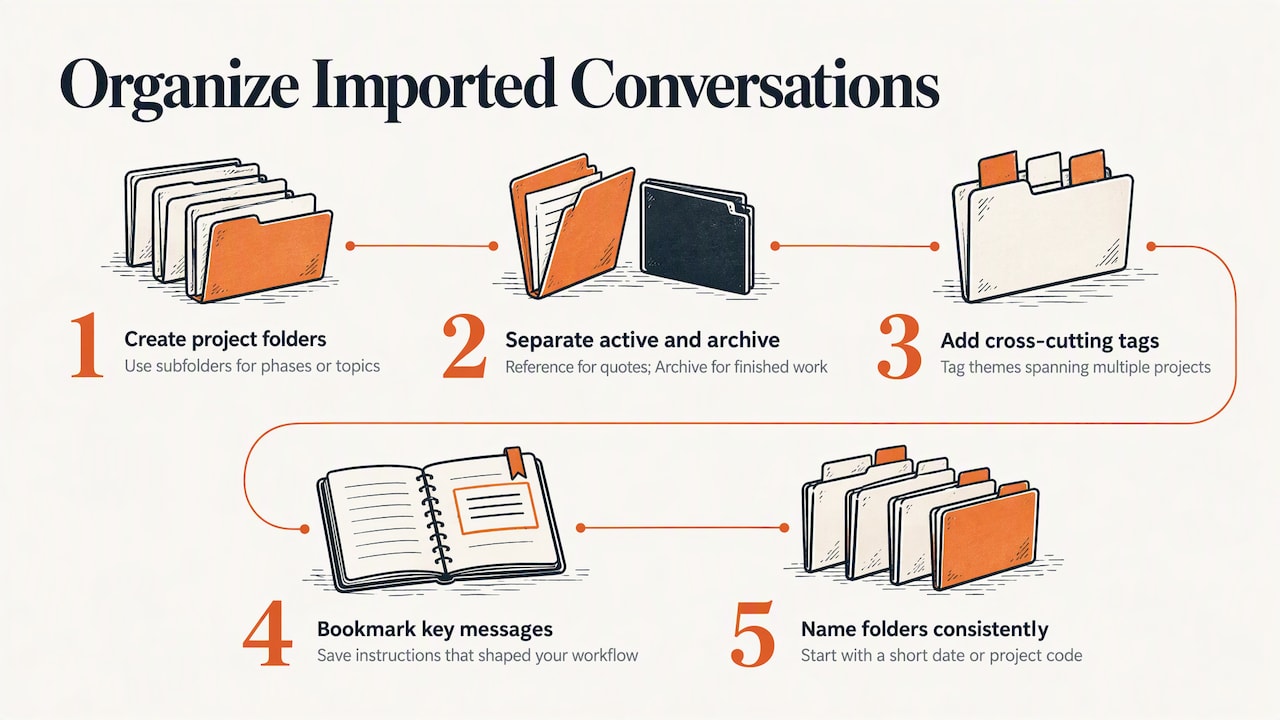
Start with a folder structure that mirrors how you actually work. Create one top-level folder per project or client, then use subfolders for phases or topics. A flat list of chats is searchable but not browsable, and folders give you both.
Next, separate what is active from what is archival. Keep a "Reference" folder for threads you might need to quote, and an "Archive" folder for finished work. When you export a batch from ChatGPT, drop it into the matching folder right away, while you still remember why it mattered.
Use tags for cross-cutting themes that do not fit one folder, such as "style guide" or "client onboarding." A thread can live in one folder but carry several tags, which makes retrieval easier when a topic spans projects.
Finally, bookmark the specific messages that hold your best instructions. If a ChatGPT conversation produced the exact prompt that shaped your workflow, bookmark that message so you do not have to reread the whole thread to find it.
A quick naming habit helps too: put a short date or project code at the start of folder names. It sorts predictably and makes it obvious which folders have gone stale.
How do folders, search, and the prompt library optimize your ChatGPT data?
Each feature solves a different part of the migration problem. Used together, they cut the manual cleanup that makes selective portability tedious.
Folders give you the scope boundaries that Claude's projects also rely on. When you decide which conversations feed a project summary, the folder is your shortlist. Open it, read what is inside, and summarize from that instead of scrolling an unstructured history.
Full-text search finds the threads your memory has forgotten. Search for a phrase you know you used, like a formatting rule or a client's preferred terminology, and you will see every conversation where it appeared. That is how you discover that a "preference" was actually a one-time request, which keeps it out of your import.
The prompt library is where your best reusable instructions should live. If you have refined a prompt over many chats, save it once and reuse it on any platform. Prompt chaining lets you string several prompts into a sequence, which suits a task like "summarize this project, then list open questions, then draft a handoff note." That sequence is exactly what you would otherwise retype before each import.
A practical workflow looks like this:
- Search for the project keyword and sweep the matching chats into one folder.
- Pull the best instruction prompts into the prompt library.
- Run Claude's import prompt in ChatGPT, using what you found to sanity-check the output.
- Paste the cleaned result into Claude.
You can see the full list of what we offer on our features page.
Can you automate or bulk import ChatGPT chats into Claude?
Not in the way the question implies, and it is worth being clear about that. Claude's official import accepts a pasted memory summary. It does not ingest a pile of full ChatGPT conversations as chat history, and we do not claim to add that capability.
What you can automate is the preparation. Bulk actions in TidyChats let you select many chats at once and move them to a folder, tag them, or export them together. If you are migrating dozens of threads, that replaces a long afternoon of one-by-one clicking.
For a large migration, a sensible pattern is batching by project:
- Group all chats for one project into a folder using bulk actions.
- Export that folder as your archive in the format you prefer.
- Summarize the project's durable context with Claude's prompt in ChatGPT.
- Paste the summary into the import flow, or into a Claude project if it is workspace-specific.
- Repeat for the next project.
Batching by project keeps each summary focused. One giant summary of everything tends to dilute the details that matter most, which is the opposite of selective portability.
If you want these steps shared across a group, our Teams plan is priced at $12 per month per seat. You can compare every option on the pricing page.
What do you do when the import doesn't look right?
Most problems fall into a few patterns, and each has a quick fix.
The summary is too long or cut off. If ChatGPT truncates its output, ask it to continue, then combine the parts before pasting. Always copy the full output; a partial paste yields partial memory.
Claude's memory seems empty. Give it up to 24 hours, then check that memory is switched on. Conversations created while memory is paused are not added to it. Also check whether the entries landed in a project instead of account memory.
Entries are wrong or oversimplified. Open Manage edits, correct them there, and ask Claude to list its memories to confirm the fix.
A chat is missing from your export set. Use full-text search to find it. If search seems to skip a thread, our piece on searching ChatGPT history explains why that happens.
The export file never arrived. OpenAI's export can take up to 7 days and the link expires after 24 hours. If the link lapsed, request a new export. In the meantime, our per-chat export covers the threads you need now.
You pasted sensitive text by accident. Delete the affected memory entries in Manage edits, and redact the source before any re-import.
When in doubt, shrink the problem. Re-run a summary for one project, import it, and test. Small, focused imports are easier to verify than one large one.
Is locally stored chat data in TidyChats secure and private?
We store your conversations locally, in your browser, rather than on our servers. That is a deliberate design choice for privacy and control, and it shapes what you should and should not worry about.
Local storage means your organized folders, tags, and exports are not sitting in a database we manage. For imported chat data, that keeps the working copy under your control, on your machine.
Local does not mean automatically safe, though. A few habits matter:
- Protect the device. Anyone with access to your signed-in browser profile can see locally stored data. Use a device password and a separate browser profile for sensitive work.
- Mind your exports. An exported file is a regular file on your disk. Store archives in an encrypted folder if they contain anything confidential, and delete them when you no longer need them.
- Redact before you paste into Claude. Local storage does nothing for text you send to another service. Anthropic's privacy documentation separates consumer protections from business governance, so keep regulated or client data out of a personal account.
- Back up deliberately. Because the data lives locally, clearing browser data or switching machines can remove it. Export your important folders as a backup on a schedule that suits you.
For shared work, decide as a team who may export what. Local storage keeps control with each person, which is good for privacy and means your team needs its own policy for sharing.
Why does selective portability produce better memories?
I have seen the same pattern repeatedly: the more you dump into a memory, the worse it behaves. A raw transcript carries every tangent, correction, and abandoned idea, and a model cannot always tell which of them still apply. A curated summary states what is true now. It is shorter, so the useful lines stand out, and errors are easy to spot and fix.
Scoping matters just as much. When one workstream's assumptions leak into another, you get answers that feel subtly off and are hard to trace. Putting project knowledge in projects, and keeping account memory for what is true everywhere, keeps each context honest.
Shaig
How can a conversation manager speed up your migration?
If you are moving more than a handful of threads, the slow part is not Claude's import. It is gathering, filtering, and formatting what you paste into it. That is where we fit.
- We export chats and folders to multiple formats, so you can archive what Claude's memory import deliberately leaves behind.
- Bulk actions, folders, and full-text search let you sort threads into project groups.
- The prompt library keeps your best instructions reusable across ChatGPT, Claude, Gemini, and Grok.
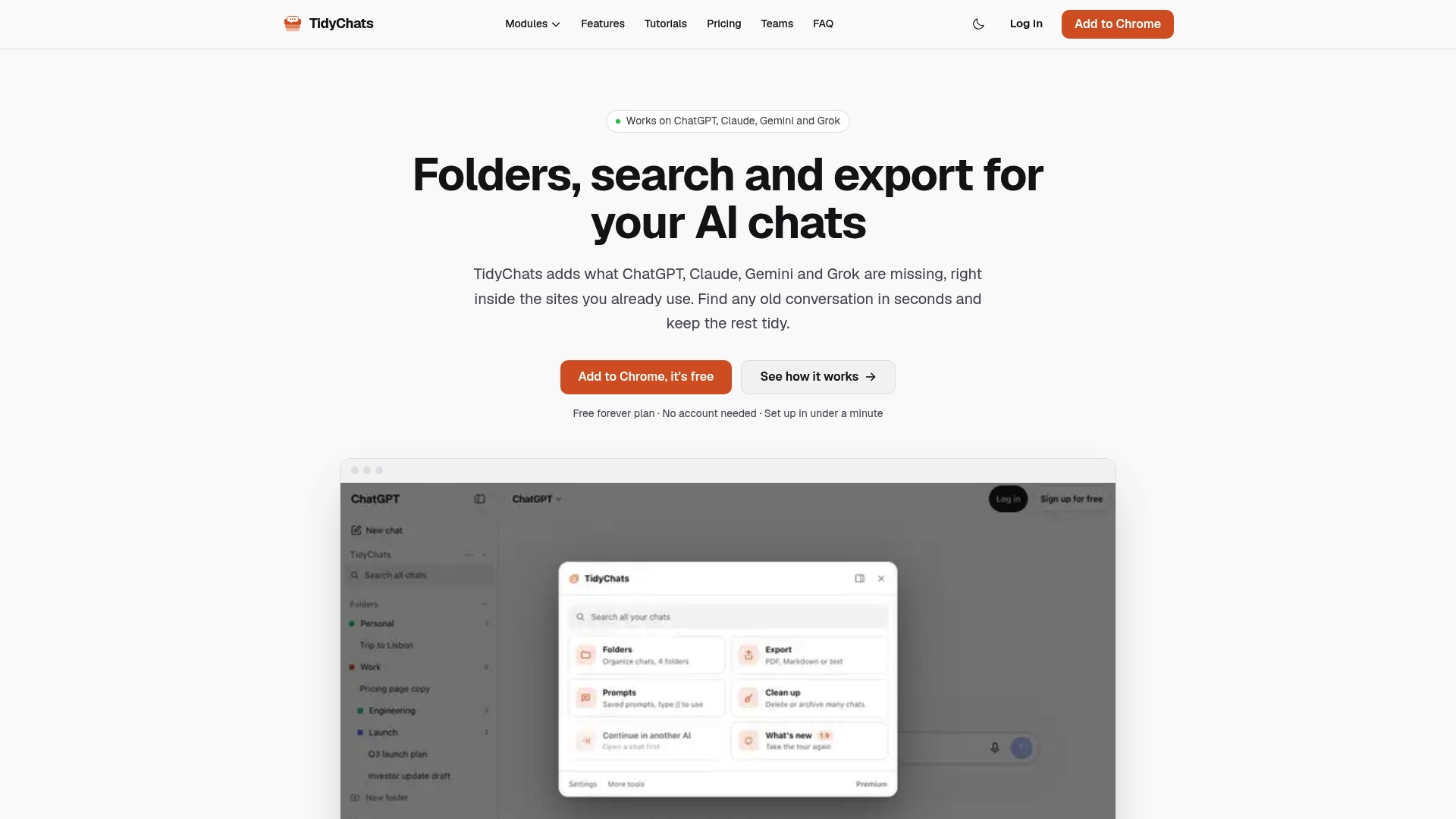
Start with the free plan on our pricing page. Premium is $6.99 per month, or $49 per year, and a one-off Premium Lifetime plan is $99. Install the extension, build your folders, and run your first selective import today.
FAQ
How do I connect ChatGPT to Claude?
You do not connect them directly. Claude's memory import has you run Claude's own prompt in ChatGPT, then paste the resulting summary into Claude. It transfers context such as preferences and recurring instructions, not live conversations.
Should I switch to Claude from ChatGPT?
That depends on your work, and you do not have to decide all at once. You can import a curated memory into Claude, keep your ChatGPT history as an archive, and compare both on real tasks before committing.
How do I import data into Claude?
Open Settings, then Memory, and choose Start import. Copy the prompt Claude gives you, run it in ChatGPT, paste the output into the import box, and select Add to memory. Processing can take up to 24 hours.
Is it safe to upload data to Claude?
It is safe when you choose the right account and clean the content first. Redact secrets and personal identifiers, and keep confidential or regulated material out of a personal account. Anthropic's privacy documentation separates consumer protections from business governance, so use a Team or Enterprise workspace when governance matters.
Sources
- Switch to Claude without starting over | Claude by Anthropic
- Import and export your memory from Claude | Claude Help Center
- Exporting your ChatGPT history and data | OpenAI Help Center
Recommended
Try TidyChats free
Folders, search and prompts for ChatGPT, Claude, Gemini and Grok.